CopyCat guide
How to create a Claude Code skill from a recorded workflow
Record a routine in CopyCat, review the instructions it extracts, then choose Export… → Claude Code. The result is an instruction file you can load as a Claude Code skill. Exporting the file does not demonstrate that Claude can complete the workflow: its tools, access and a separate test still matter.
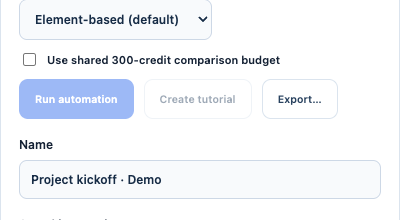
CopyCat for Chrome 0.1.2 preview, showing existing demo data. Export sits beside Create tutorial. Run automation and Create tutorial are disabled in this disconnected preview.
Open full-size image1. Record one small, complete routine
Choose a task with a clear finish line. For example: prepare a project kickoff draft, enter a project name and priority, and review the draft before saving. Use fictional values for the first version.
In CopyCat for Chrome, open Record, name the workflow and choose Start recording. Perform the routine, then stop. Allow analysis to finish before reviewing the saved workflow. Recording and analysis are separate from a Claude Code export.
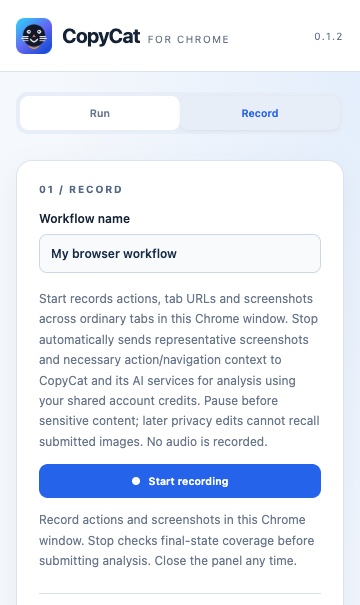
Existing product preview: the Record panel explains what capture includes. This screenshot is a setup view, not evidence of a newly recorded workflow.
Open full-size imageKeep private information out of the demonstration. The Chrome recording UI warns that stopping sends representative screenshots and action/navigation context for analysis; editing images afterward cannot recall images already submitted.
2. Turn the recording into reusable instructions
Read Saved instructions, check the variables and answer required clarification questions. Replace one-off values with inputs. Explain what success looks like and what should happen when information is missing.
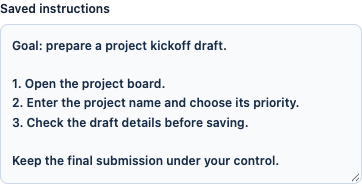
Actual Chrome preview UI with fictional project kickoff instructions. Review this text before exporting.
Open full-size imageFor our example, use project_name and priority as inputs. Add: “Stop at the review screen. Do not submit the project.” A recording shows what happened once; reusable instructions must also explain the boundaries for the next run.
3. Export the Claude Code version
In the extension, choose Export… → Claude Code. CopyCat downloads <workflow-slug>-claude.md; rename the file to SKILL.md when placing it in a skill folder.
On desktop, open the ready workflow in Workflow Library, find Generated artifacts → Instruction, and choose Export… → Claude Code. Desktop resolves a personal skill destination and writes the file there. Check the displayed path, especially if you use a custom Claude configuration directory. An existing export requires replacement confirmation.
Choose the exact target: Claude Code and Claude / Cowork are separate menu entries. OpenCode exports a command Markdown file; ChatGPT Work exports a plugin package, with separate installation steps. This guide covers the Claude Code instruction export. Neither route transfers a working browser session or proves that the receiving tool can replay the recording.
4. Put the file where Claude Code loads skills
For a personal skill, use ~/.claude/skills/project-kickoff/SKILL.md. For a skill limited to a repository, use .claude/skills/project-kickoff/SKILL.md inside that project. The file contains YAML frontmatter followed by Markdown instructions. A description tells Claude when the skill is relevant; /project-kickoff invokes it directly. These locations and invocation syntax follow the official Claude Code skills documentation.
Here is a small authored example, not a captured CopyCat export or a tested skill:
---
name: project-kickoff
description: Prepare a project kickoff draft for review.
disable-model-invocation: true
---

Ask for project_name and priority if either is missing.
Use the available project workspace tools to prepare a draft.
Check the displayed name and priority against the inputs.
Stop before submission and report what is ready for review.
If workspace access is unavailable, explain the blocker.
The optional disable-model-invocation: true setting requires manual invocation, as described in Claude Code’s invocation controls.
5. Check loading, then test separately
Start a fresh Claude Code session in the intended project and check that the skill appears in the / menu. When you are ready to test, invoke /project-kickoff with fictional inputs in a safe workspace. Verify the actual draft fields and the stop-before-submission boundary. If the required browser or workspace tools are missing, resolve that before expecting the skill to work.
This guide’s verification covers CopyCat source, existing UI captures and Claude Code documentation. No skill was installed or executed for this article. Keep the distinction clear: file exported → skill discovered → workflow verified.
Explore CopyCat’s recording and export tools
Review the desktop and Chrome options, privacy information, and account and credit requirements before recording or generating content. Exporting instructions or a document does not establish that a workflow has been tested.
Explore CopyCatRead CopyCat privacy information