FormBlessed guide
How to fill a website form from Excel
To transfer information from Excel into a website form, save the relevant workbook, select the worksheets containing the facts, and connect the intended form. With FormBlessed, approve the interpretation, then compare filled values with their sources before saving. The workflow described here is a reviewed transfer of information, not a promise to submit one form for every spreadsheet row.
1. Prepare the workbook and the task
Use a supported XLSX file and identify the facts needed for the current form. FormBlessed also supports CSV and pasted spreadsheet cells, but this guide focuses on a local Excel workbook. Current import controls allow up to 16 MB per file.
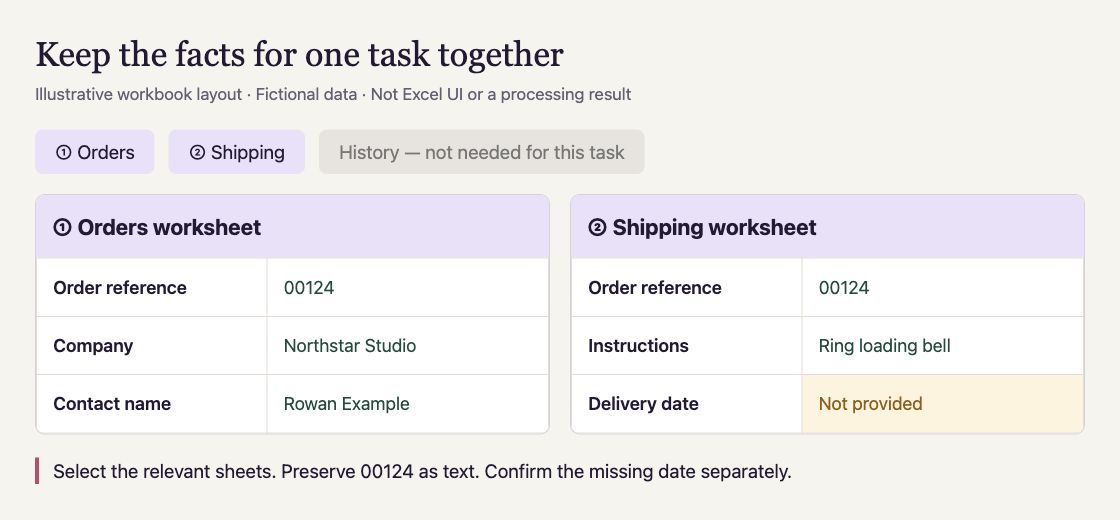
Illustrative worksheet layout with fictional data, not Excel UI or a processing result. Include relevant sheets and preserve the order reference’s leading zeros. Confirm the missing date separately.
Open full-size imageSave the values you intend to use. The imported workbook is a snapshot: the extension does not edit the original or recalculate Excel formulas. If a calculated value matters, make sure the saved workbook contains the expected result.
No fixed source template or manual column-to-field map is required. Clear labels still help you review the interpretation. Choose only material relevant to the task.
| In your workbook | On the website | Review before saving |
|---|---|---|
| Company: Northstar Studio | Company name | Confirm the company belongs to this request. |
| Order reference: 00124 | Reference number | Check that the leading zeros remain. |
| No delivery date recorded | Requested delivery date | Confirm the date separately; do not invent it. |
2. Choose the file and relevant worksheets
Open the intended form in Chrome and the FormBlessed panel. Connect your CopyCat account if needed. Use Choose files to select the XLSX workbook, then check the worksheet selections. Include sheets with relevant context and exclude unrelated or expected-answer material.
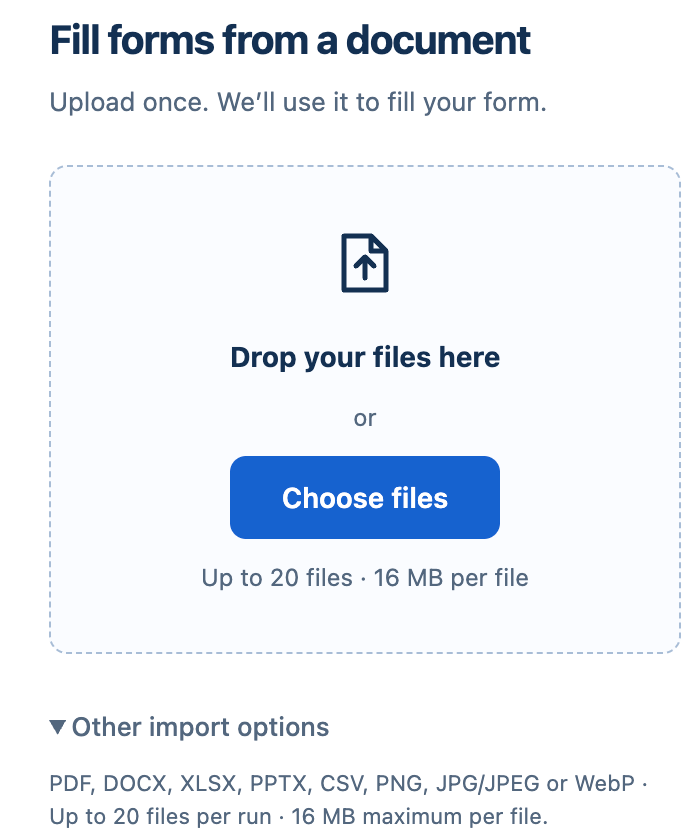
Actual archived import controls from the v0.1.2 release assets, cropped to the file chooser. XLSX is listed. Current labels may differ; worksheet selection follows import and is described in the steps, not fabricated in this screenshot.
Open full-size imageFor example, an order reference might be on Orders while a delivery note is on Shipping. Selecting both provides the relevant context; selecting an unrelated historical sheet can introduce conflicting facts.
3. Confirm the website and approve processing
Check that the connected website is the intended destination. If the form is embedded, choose and approve the appropriate document or frame when prompted.
Review the processing credit limit before starting. A new spreadsheet interpretation uses the shared CopyCat wallet; adding a file or connecting an account does not provide free processing. The current implementation uses Guided analysis for spreadsheet selections.
Follow the panel’s import/start action after checking the source and destination. Available suggestions may fill supported controls after you approve Start, so review the actual page rather than assuming filling waits for a second confirmation.
4. Compare the result with the workbook
Inspect the filled values and any Needs review items. Open available source references and compare the cited worksheet or cell with the value and the question. If the source location is unavailable, verify the fact in your own workbook. A reference helps inspection; it is not a guarantee of correctness.
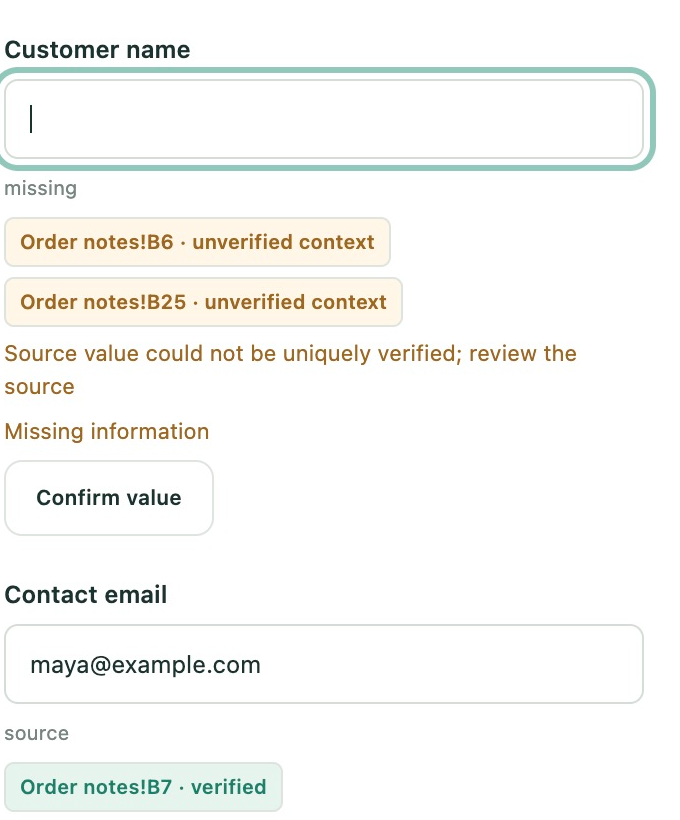
Actual archived purchase-order test, using the legacy Sheet to Form interface and fictional sample data. The highlighted references are context, not a verified customer name. Account header, balances and receipts are excluded; this is not a fresh run.
Open full-size image- Confirm which person, company or record the answer belongs to.
- Check leading zeros, dates, units and selected options.
- Resolve competing values using the appropriate source and task context.
- Supply missing facts manually after confirming them.
- Check fields the website rejected or did not retain.
5. Save only after the website looks right
Review the visible form before you choose Save or submit. Follow page transitions deliberately and check the destination website’s confirmation. If the outcome is uncertain, inspect it before trying again.
This guide does not establish that every row in an arbitrary workbook can be submitted automatically, that every website works, or that every required field can be inferred. Start with a small, representative form you are allowed to use.
What this workflow does not cover
Legacy Excel formats, workbook editing and formula recalculation are outside this workflow. Website authentication, protected steps, custom controls and incomplete sources can require manual handling.
A Google Sheets export and a local XLSX import are different access paths. Optional Google Drive imports depend on connection access; this guide does not require or promise public Drive readiness.
FormBlessed requires a connected account and processing credits. Selected source content, instructions and relevant form context are processed by the hosted service and its document/AI processors. Read the privacy notice before uploading sensitive material.
No new live Excel extraction was performed to prepare this guide. Its steps are grounded in the current import/review implementation and retained workbook verification records, rather than an Excel video demonstration.
Common questions
Do I have to rename every column to match the form?
No fixed column mapping is required. Keep labels and context clear enough to check which facts were used, and select the relevant worksheets.
Will changes in Excel update the form automatically?
No. The imported file is a snapshot. Later workbook changes are not synchronized into the run.
Can I submit one form for each row automatically?
This guide does not promise unattended per-row submissions. Review the current interpreted information and website behavior. Bulk submission needs its own verified workflow and authorization.
What if the spreadsheet does not contain an answer?
Confirm the missing information from an appropriate source and enter it manually if necessary. Do not treat a guessed value as a sourced fact.
See whether FormBlessed fits your form
Review supported sources, account requirements and privacy information before you choose to install. Compatibility varies by website.
Explore FormBlessedRead the FormBlessed privacy notice