FormBlessed guide
How to autofill a job application from your résumé
To autofill a job application from your résumé, add the résumé file to FormBlessed in Chrome, open the application form and approve processing. FormBlessed reads the résumé, suggests values for the fields it can see and flags what it could not find or could not decide. You then compare each value with its source and choose Save yourself. It fills a website form from a document; it does not edit the résumé and it does not submit the application for you.
1. Prepare a résumé that is easy to read
Use the current version of your résumé as a PDF, a Word (DOCX) file, or a PNG, JPG or WebP image. FormBlessed also accepts PPTX, XLSX and CSV files, but a résumé usually arrives as one of the first three. Each file can be up to 16 MB, and a run can include up to 20 files. Older DOC files are not supported, so save them as DOCX or PDF first.
Check the résumé for the facts the application will ask about: full dates for each job, employer names, job titles, schooling and any certificates. A résumé that gives only a month and a year, or that says “present,” can still be used. Read the table below to see what FormBlessed leaves for you to confirm.
If your résumé is a scan or a photo, make sure it is straight, sharp and complete. Pages are converted to PDF and read with document recognition, so a blurry page gives the reader less to work with.
| On the résumé | On the application | Check before saving |
|---|---|---|
| Line cook, Example Harbor Cafe, June 2021 – present | Employer, title, start date, end date | A month and year does not supply a day. “Present” is not today’s date. Add any day the form requires. |
| Food handler certificate, expires 2027 | Licenses or certifications | Confirm the certificate name and that it matches the question being asked. |
| No phone number listed | Phone number | A missing fact stays empty. Enter it yourself. |
2. Add the résumé and open the application
Open the application form in Chrome, then open the FormBlessed side panel. Connect your CopyCat account if the panel asks. FormBlessed needs an account and processing credits, and a new analysis uses the shared credit balance. The panel shows your available balance and lets you set a maximum number of credits for the run.
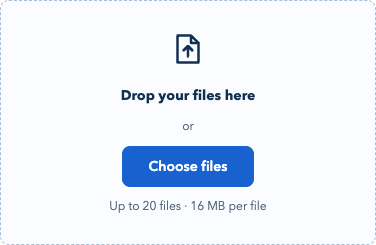
Current FormBlessed file picker. Interface preview; no document was submitted.
Open full-size imageChoose Choose files and select your résumé. Look at the file name and the website shown in the panel before you continue. If the application is inside an embedded frame, FormBlessed asks you to choose the right one.
3. Approve processing and let FormBlessed fill
Before you start, check the reading method in Settings. Guided analysis is the default. Direct matching is an option for documents only. Then start the run. FormBlessed reads the fields on the page, matches them to facts in your résumé and fills the controls it supports.
Many applications span several pages. FormBlessed reads the fields on the page you are on and draws on the same retained résumé for later pages. Check each new page, because a fact can be present on page one and still be missing for a question on page four.
Some fields stay in your hands. Password fields, verification codes, payment details and labelled Social Security number fields are left redacted and manual, and so are controls FormBlessed cannot fill. The website still decides what it accepts.
4. Review every value against its source
Open the panel’s list of fields that need you. Each item opens the matching place in the source so you can compare the value with the line in your résumé. For a PDF, the viewer highlights the cited spot. A source reference helps you check a value. It does not prove the value is right.
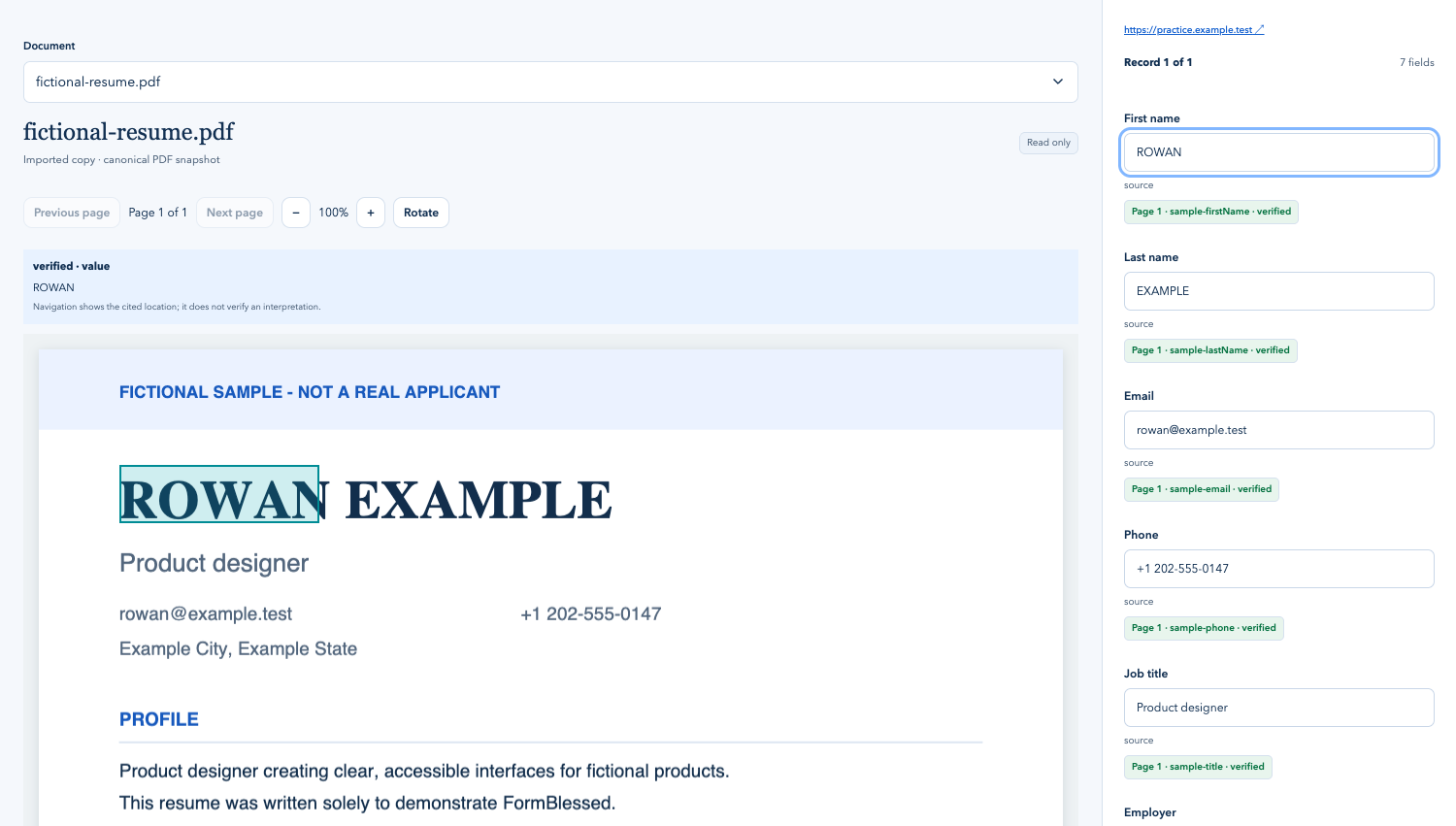
Current FormBlessed source-review interface with a fictional résumé. Preview data, not a new extraction result. Check the cited source before saving.
Open full-size imageFields the résumé does not answer are left empty and listed as missing. Preferences and permissions that a résumé does not state, such as work authorization, are not guessed. FormBlessed does not write cover letters or summaries either, so those stay yours.
- Confirm that each employer, title and school sits in the right slot.
- Check start and end dates, especially month-only dates and current roles.
- Read any item flagged as derived, where the form wanted a different format than the résumé used.
- Fill missing facts by hand after confirming them.
- Look for fields the website cleared or rejected.
5. Save or submit only after the page looks right
Scroll the real application and read it once more. When you are satisfied, choose Save in FormBlessed or save on the website yourself. FormBlessed’s Save presses the website’s own control and checks for the website’s confirmation. It does not submit your application automatically, and you should read the site’s confirmation before moving on.
If a Save outcome is uncertain, check the website before trying again.
What this does not cover
Filling a web form from a résumé is not PDF editing, and FormBlessed does not change your file. Employers’ sites vary, and custom controls, protected steps and CAPTCHAs can need manual handling.
FormBlessed sends the content you select to third-party AI and document-recognition providers, so processing is not on-device. Read the FormBlessed privacy notice before you upload a résumé that contains sensitive details, and leave out anything the application does not need.
Common questions
Can I apply to many jobs at once with one résumé?
This guide does not promise that. FormBlessed works on one connected form at a time and you review and save each application yourself.
What if my résumé is a scan or a photo?
PNG, JPG and WebP images are accepted. A clear, straight, complete image gives the document reader more to work with. Check every value, because poor scans are more likely to need correction.
Does FormBlessed edit my résumé?
No. It reads the file you choose and fills the website form. Your original file is not changed.
Will it answer questions my résumé does not cover?
No. A missing fact stays empty and is flagged. Confirm it from a reliable source and enter it yourself.
See whether FormBlessed fits your form
Review supported sources, account requirements and privacy information before you choose to install. Compatibility varies by website.
Explore FormBlessedRead the FormBlessed privacy notice