CopyCat guide
An SOP template you can build from a screen recording
A screen recording can supply the procedure section of an SOP: the ordered steps, their instructions and a screenshot for each. It cannot supply the owner, the trigger, the exceptions or the review date. Record the normal path in CopyCat, create a tutorial, export it as a Word document and fill the rest of the template yourself. There is no separate SOP export in CopyCat; an SOP is an adapted tutorial document.
1. The template, and where each part comes from
Most SOP templates have the same parts. Some of them are visible on a screen and some are not. Sorting them first tells you what to record and what to write.
In CopyCat for Chrome, the tutorial editor has fields for a title, an introduction and prerequisites, followed by one scene per step with an instruction and either a screenshot or text only. The desktop app, CopyCat for Mac, organises the same material under Steps, Video and How-to guide views. Those fields cover the top and the middle of an SOP. The rest is yours.
| SOP part | Where it comes from | Who supplies it |
|---|---|---|
| Title | Tutorial title | Recording and review |
| Purpose and when to use it | Introduction field | You write it |
| Prerequisites | Prerequisites field | You confirm it |
| Procedure steps | One scene per step, with instruction | Recording, then your review |
| Evidence for each step | Screenshot, or text only | Recording, then your choice |
| Owner, trigger, exceptions, completion check, review date | Not captured by a recording | You add them in the Word file |
2. Record one normal path
Pick a process that has a clear start and a clear end, and use sample data so no real customer or employee details appear on screen. Record the normal path only. A recording shows what you did once, so it cannot show what to do when an input is missing or a page behaves differently.
Stop the recording, let analysis finish, and read the saved instructions before you go on. Correct any step that describes a click instead of the intent behind it. “Select Normal” is a weaker step than “Select the priority the requester supplied.”
3. Create the tutorial and review each step
In CopyCat for Chrome, open the reviewed workflow and choose Create tutorial. In the desktop app, open the tutorial workspace and work through Steps. Check the title, the introduction, the prerequisites and the wording of every instruction. In the Chrome editor you can move a step if the order is wrong.
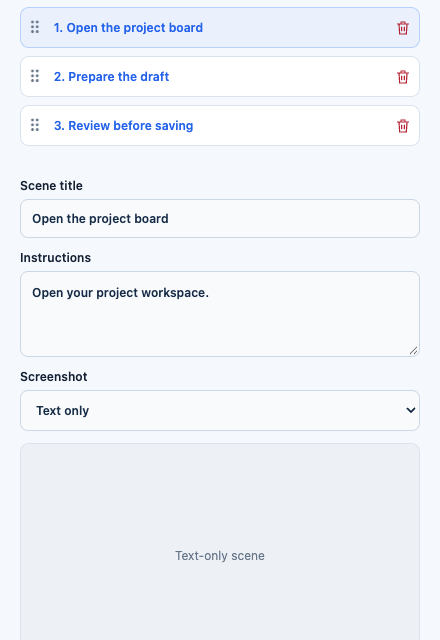
CopyCat for Chrome 0.1.2 preview with fictional demo steps. This existing capture shows the step list, not a finished SOP or a new recording.
Open full-size imageEvery step needs either a screenshot or an explicit choice of Text only. If a step has no image, the editor flags it for review. Pick the screenshot that shows the state the reader should see, not just any image from the recording. Use a redaction on anything private before you export, and open the final file to look for what you missed.
4. Export a Word file and add the SOP parts
In CopyCat for Chrome, choose Export and then PDF, DOCX or PPTX. On the desktop app, open How-to guide, name the guide and choose Create guide, then PDF, Word or PowerPoint. Choose Word, because you will edit the file.
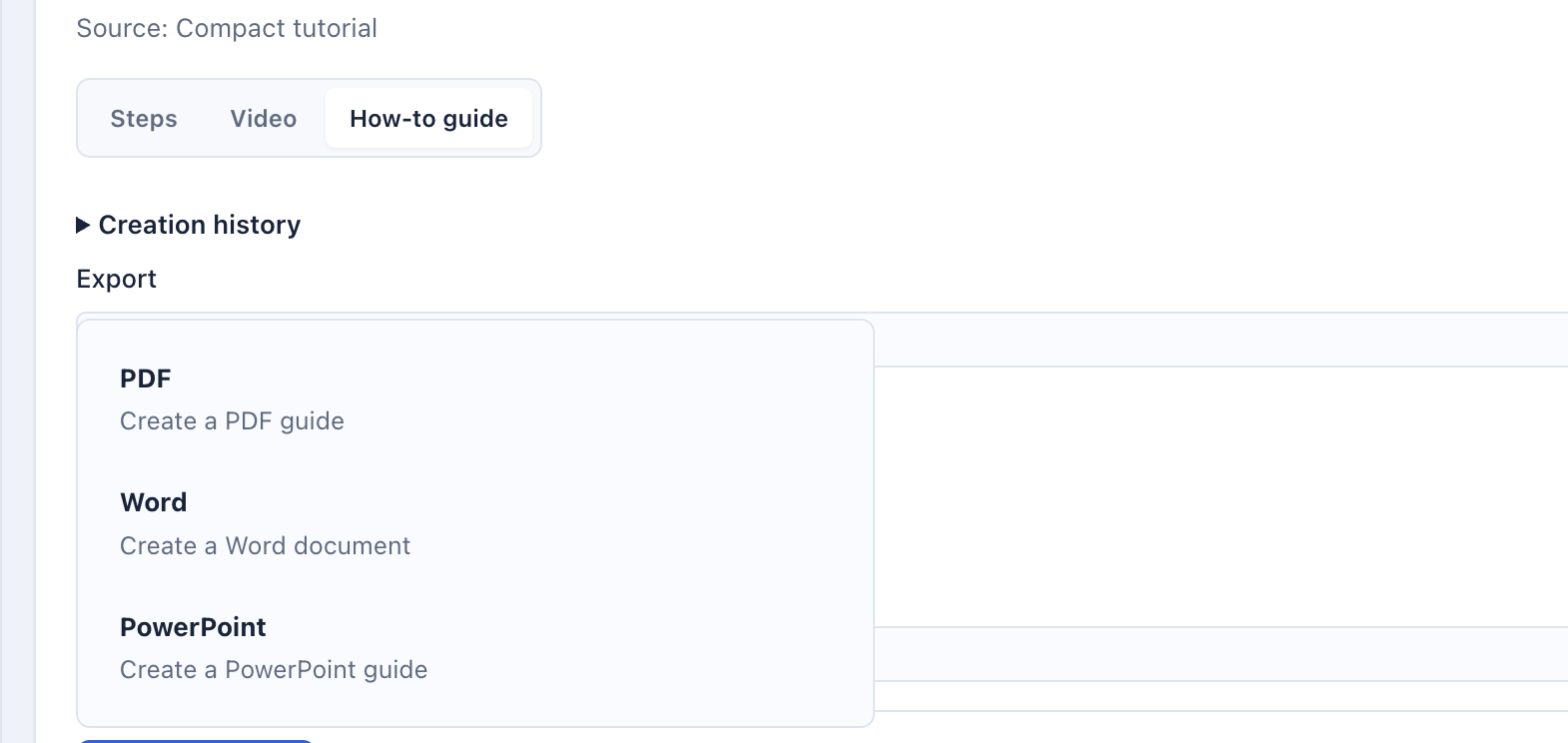
Cropped existing desktop capture showing PDF, Word and PowerPoint. This historical layout illustrates the format choices; current source uses the Create guide menu.
Open full-size imageAdd the parts a recording cannot hold. Write a short block at the top of the file and keep it in the same place in every SOP, so readers learn where to look:
- Owner: the role that keeps the procedure correct.
- Trigger: the event that starts it.
- Completion check: what the reader can see when it is done.
- Exceptions: what to do when an input is missing or a step fails.
- Boundary: what the procedure must not do, such as submitting a form.
- Review date: when someone will check it against the real process.
5. Test it with someone who did not record it
Give the file to a person who does not know the process and ask them to follow it with sample data. Note every place they hesitate, then fix the instruction, add a missing prerequisite or add an exception. Have the process owner approve it before it is shared. An exported document is a draft until someone has used it.
What this does not do
CopyCat has no dedicated SOP export mode. An SOP here is a tutorial document that you extend by hand. The export does not check that your process is correct, complete or compliant with any policy or standard, and the owner stays responsible for that.
When you create a tutorial, CopyCat for Chrome shows “Writing tutorial…” while AI drafts the step text. That text can need correction, so read every instruction against what you recorded. CopyCat uses a Lavenberry account, so review the account, credit and privacy information before you record, and keep private details out of the capture. Redactions and Text only choices are yours to make; nothing decides for you what is private.
Common questions
Is there an SOP export in CopyCat?
No. CopyCat exports tutorial documents as PDF, Word or PowerPoint. You adapt the Word file into an SOP by adding the owner, trigger, exceptions and review date.
Which format should I choose for an SOP?
Word, because the owner can edit it. PDF is useful as a read-only copy once the SOP is approved.
Can a recording show the exceptions?
Only if you recorded them. A normal-path recording shows one route, so write the exceptions yourself and test them.
Do I have to include screenshots?
No. A step can be marked Text only. Use that when an image adds nothing, or when the screen shows private details.
Explore CopyCat’s recording and export tools
Review the Mac and Chrome options, privacy information, and account and credit requirements before you record. An exported document is a draft until the process owner has tested and approved it.
Explore CopyCatRead CopyCat privacy information